Mount
The plugin allows you to mount (load) and unmount (unload) .pak files.
I advise against unloading files unless you know exactly what you're doing.
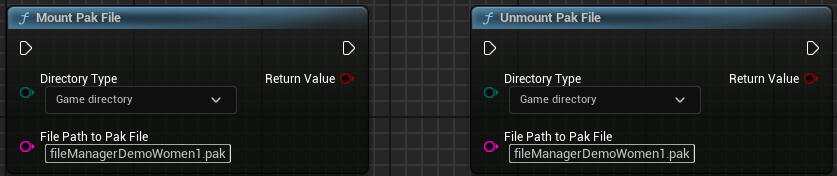
Directory Type
Game directory: This is your project directory. That is, where the Content directory is located.
Absolute directory: Here, you need to specify the full directory path. On Windows, that would be something like D:\MyDirectory\test.pak
File Path
Specify the directory here, including the .pak file.
For the mount to work, there must also be a .ucas and a .utoc file in the same directory with the same filenames.
Load the contents of a .pak file
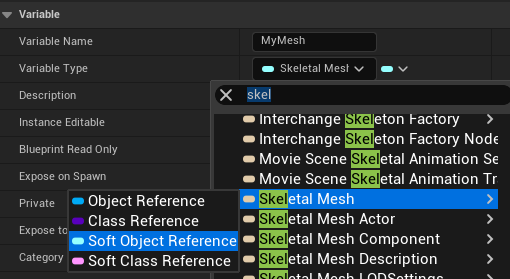
To load an asset at runtime in Unreal, you must first create a variable. This variable must be of the type Soft Object Reference.
It acts as a sort of placeholder, allowing you to write code even if the content doesn't yet exist. Here's an example of a Skeletal Mesh.
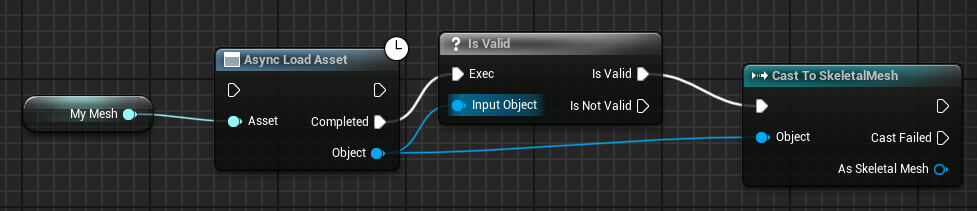
After you've mounted your .pak file, you can now load the contents of the .pak file into your variable using Unreal functions.
Create .pak Files
I won’t go into much detail here about how to create additional .pak files, since that’s not part of the plugin and you can find much better information on YouTube or through an AI.
Basically, you need to copy your assets into separate directories in the Unreal Editor, add a Data Asset file to each directory, and then specify in the project settings that these should be saved as individual .pak files.
Important! Unreal cannot compile shaders after the app has loaded. This means your materials should be in the .pak file that loads when the app starts.
However, you can place material instances and textures in separate .pak files that are mounted later.