File Manager
Here you can manage your files.
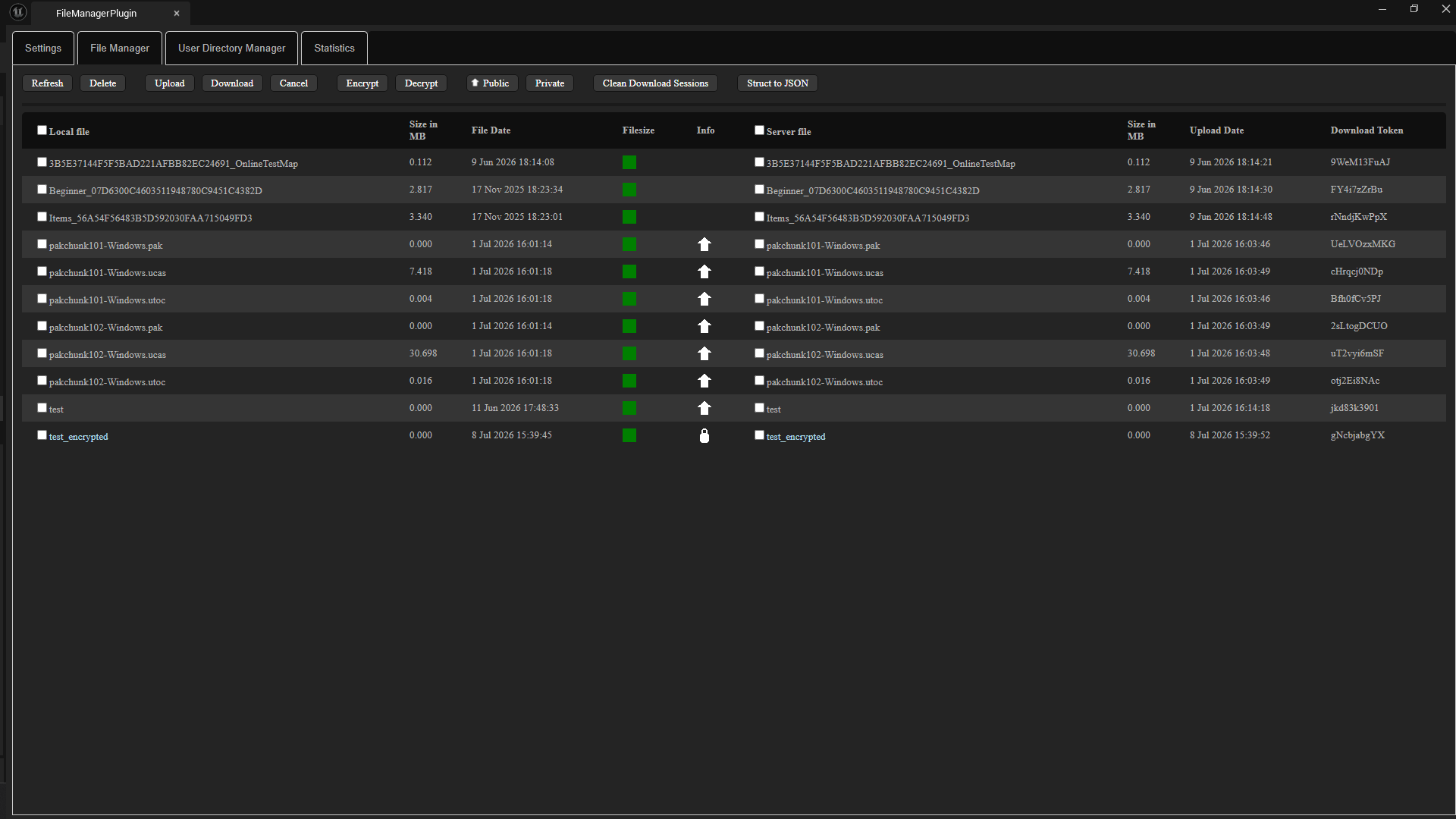
On the left side, you'll see the files from the directory you entered in the Local file directory field on the Settings tab. On the right side, you'll see the files located on the server.
The colored square in the middle shows the difference between the files based on their file size.
Green means that the file has the same size on the client and the server.
Orange means that the file exists on both sides but has a different size.
Red means the file is missing on one end.
 The arrow in the middle means that the file is available for download. In other words, it is available for download to all users who know the download token.
 Files encrypted with AES on the server side are marked with this symbol.
Download Token is an automatically generated ID that you can use later to download files via the download function.
For example, if you want to download the file test.pak using the download token Dk3wucm2, you must enter this token—not test.pak—in the download function.
This helps prevent unauthorized access. Anyone who doesn’t know the token won’t be able to download the file.
You can change it by double-clicking it.
Refresh
Lists all local and server files. The files on the server are listed from the database, not from the file directory.
Encrypt/Decrypt
If you want to use AES encryption, you can do so using these buttons here. Only local files can be encrypted and decrypted. You must first download the AES key using the download button in the Settings tab. When you encrypt a file, a copy of the file is created. Files encrypted on the server are displayed with a lock icon.
Public/Private
In order for a file to be downloaded, it must first be set to Public.
You cannot delete or overwrite files that are set to Public. Set the file to Private and wait until all ongoing downloads are complete. Only then can you delete the file.
Clean Download Sessions
A session for a currently running download is stored in the database and deleted once the download is complete.
A file can only be deleted once it no longer has any active sessions (downloads).
However, sometimes sessions aren't deleted properly, or you might want to delete the file even though there are active downloads.
In that case, you can use this button to remove the sessions from the database.
Struct to JSON
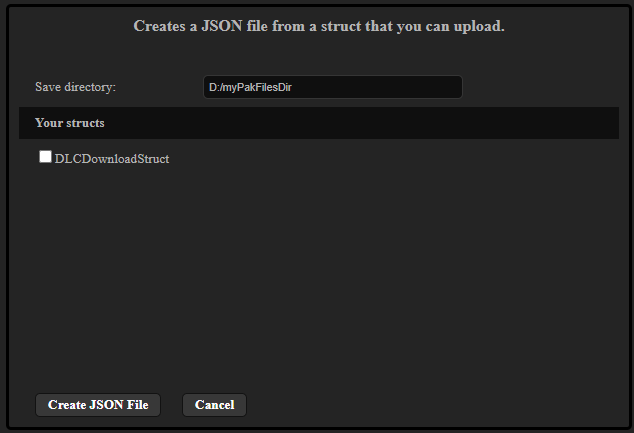
This function lists all the structs in your project, and you can convert them into JSON files to upload later. This is intended to allow you to distribute settings, not just files.